OBS Scene Templates

Access a variety of pre-configured OBS scene templates designed to elevate your live broadcast. Download the package below and import the assets directly into OBS to get started.

How to Import & Set Up Your OBS Template
Step 1: Download & Extract Assets
Download the
Templates.zippackage.Extract the ZIP file to a permanent folder on your computer (do not delete or move this folder after setup, as OBS relies on these file paths).
Step 2: Import the JSON Scene Collection

Open OBS Studio.
Click Scene Collection in the top navigation bar and select Import.
Click the
...button next to Collection Path, select the imported.jsonfile from your extracted folder, and click Import.Go back to Scene Collection in the top menu and select the newly imported collection name to activate it.
Step 3: Connect & Re-link Your Sources

Because file paths and hardware differ on every setup, double-click each item in the Sources dock to link your files and devices:
Streamer Logo.png:
Double-click > Click Browse > Select your personal logo image file.
Code.png:
Double-click > Click Browse > Select your custom promo/affiliate code image file.
Banner.mov:
Double-click > Click Browse > Select the animated banner video file from the extracted assets (ensure Loop is checked).
Frame.png:
Double-click > Click Browse > Select the Template x.png frame overlay file from the assets folder.
Video Capture Device:
Double-click > Open the Device dropdown > Select your physical webcam or capture card.
Window Capture:
Double-click > Open the Window dropdown > Select the game, browser, or application window you wish to stream.
Thrill Website Capture

To get the best result when capturing the Thrill website, follow these steps:
Go full-screen in your browser.
Collapse the left navigation bar on the Thrill website.
Center and top-align the window capture so your balance and top header are clearly displayed.
Result

Template Variations
Scene Template 1

Scene Template 2

Scene Template 3
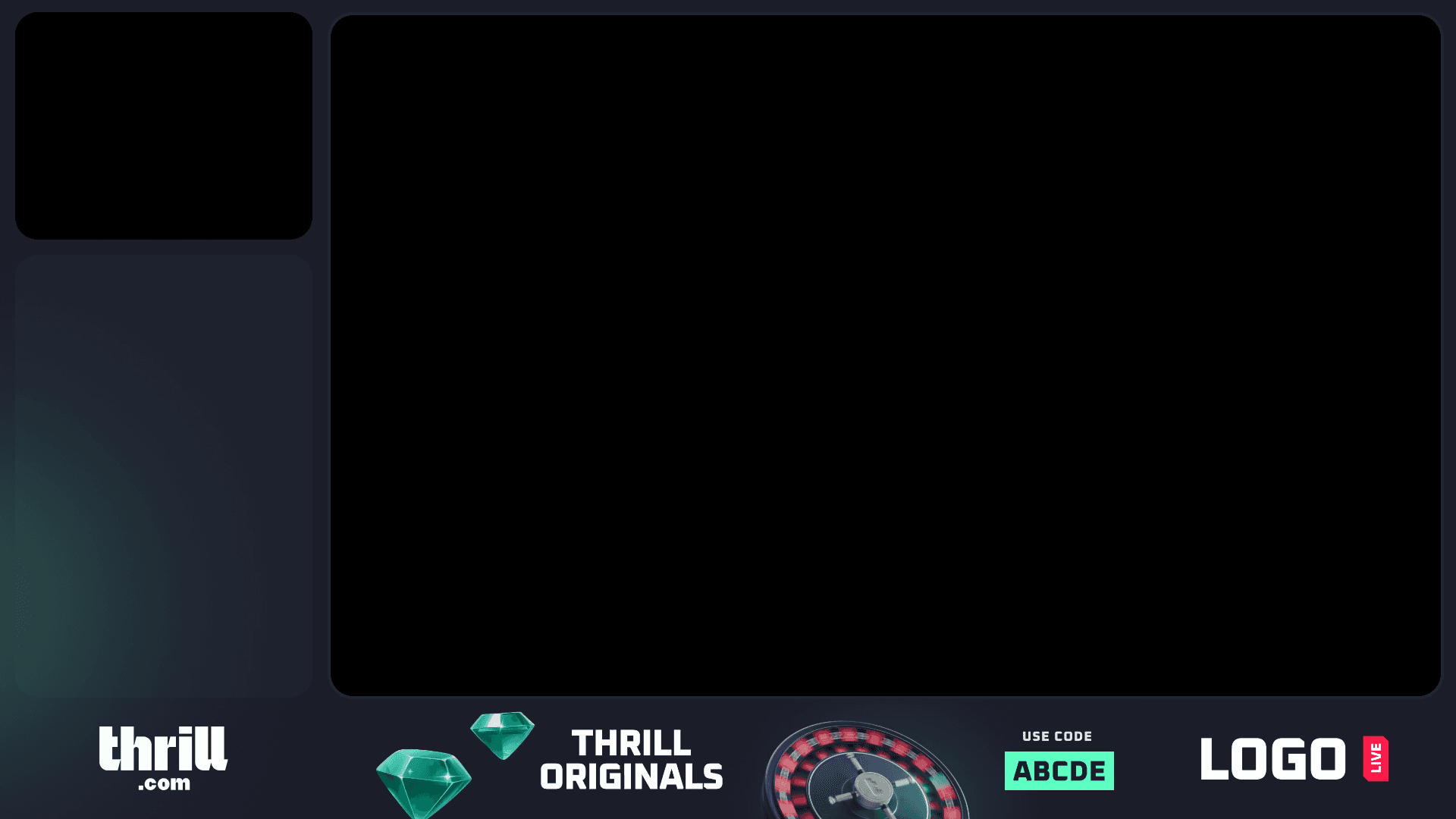
Scene Template 4
